
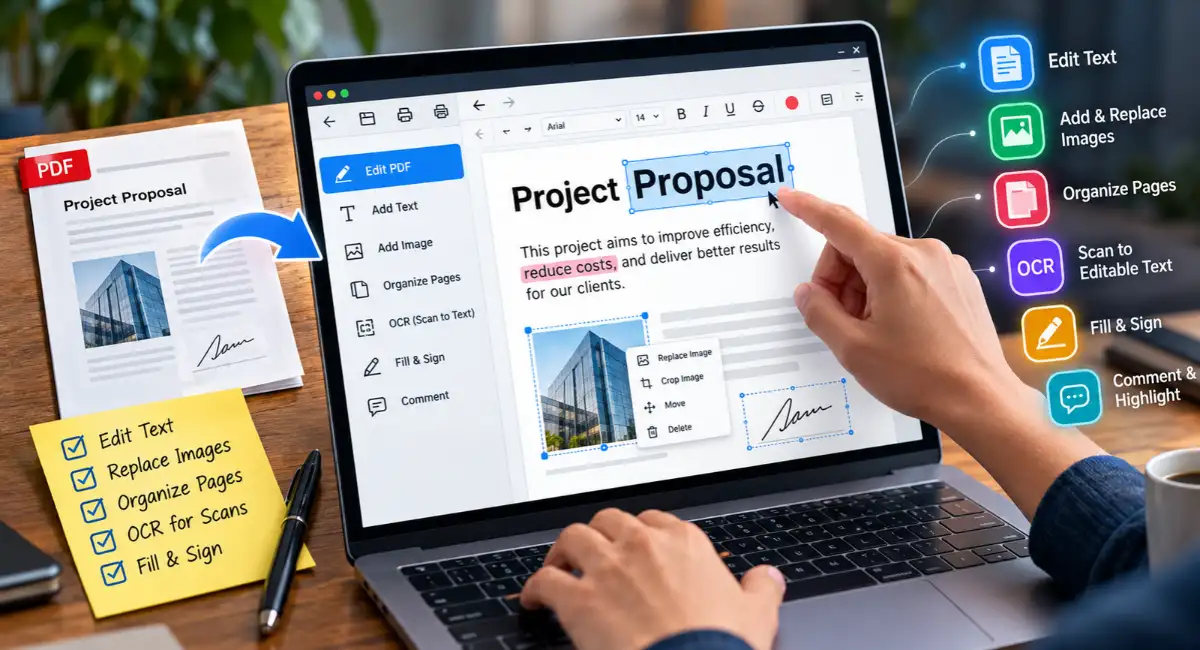
Free PDF Editor: The Complete Guide to Editing PDFs for Free (2026)
By Fiaz Khan · Last updated: October 11, 2026
You need to fix one line in a PDF. You open the file, click the text, and nothing happens. So you search for a free PDF editor, and half the results ask for a credit card at the last step.
That’s the trap with this search. Many tools say they’re free. Few let you change real text without a watermark, a sign-up wall, or a daily limit.
This guide comes from Tool Hub Zone, a free tools site with PDF utilities. You’ll learn which kinds of free editors exist, what each one can and can’t do, and how to edit a PDF step by step. You’ll also learn how to handle scans, keep your files safe, and fix the problems people hit most.
Quick Answer: How to Edit a PDF for Free
You can edit a PDF for free, but the right method depends on the job. For highlights, notes, form filling and signing, free built-in apps and browser tools are enough. To rewrite existing text, use an editor that supports real text editing, or convert the file to Word, edit it, and save it as a PDF again. For scanned pages, run OCR first so the page becomes real text.
What Is a PDF Editor?
A PDF editor is software that changes what’s inside a PDF file, such as text, images, pages and form fields. PDF stands for Portable Document Format. Adobe created it in the early 1990s, and it became an international standard (ISO 32000) in 2008.
PDF exists to look the same on every screen and printer. That goal makes editing hard. A PDF records where each piece of text sits on the page. It doesn’t record paragraphs, tables or columns the way a Word file does. An editor has to guess the structure, and sometimes it guesses wrong.
PDF Editor vs PDF Reader
A PDF reader opens, searches and prints a file. A PDF editor changes the content. The line blurs, because many readers also let you comment, highlight and fill forms.
Free readers show the pattern. They’re free to view, comment, fill and sign, but editing the original text, images and pages needs a paid editor.
What You Can and Can’t Edit in a PDF
You can usually edit text in a PDF that came from a Word file or a design tool. You can’t edit a scan directly, because a scan is a picture of a page. OCR (optical character recognition) turns that picture into real text. We cover it later in this guide.
Three other limits matter. If the author set a password or editing restrictions, many editors refuse to change the file. If someone added a digital signature, any edit breaks it. And if the PDF uses a font your computer doesn’t have, the editor swaps in another font, so the page can look slightly off.
What a PDF Holds Under the Surface
A PDF is more than the page you see. It can hold text, images, vector graphics, embedded fonts, form fields (often called AcroForms), bookmarks, comments and metadata. Metadata is hidden data such as the author name, title and creation date.
Each part behaves differently when you edit. Fonts explain why a changed line can look different. Metadata explains why a shared file can still show an old author name. Form fields explain why some PDFs let you type and others don’t.
Can You Really Edit a PDF for Free?
Yes, you can edit a PDF for free, but the word free covers three different things. Know which one you’re getting before you spend time on a file.
Free vs Freemium vs Free Trial
A free tool has no stated limits. A freemium tool gives you a free plan with caps and asks you to pay for more. A free trial gives you every feature for a short time, often 7 days, and it can turn into a paid plan if you forget to cancel.
So, is there a completely free PDF editor? Yes, a few exist, but they’re the exception. Most free editors are freemium, so read the limits before you start.
Common Limits of Free PDF Editors
Free editors usually limit one or more of these things: tasks per day, file size, page count, watermarks, sign-up, OCR and text editing. In October 2026 we saw caps of about 2 to 3 tasks per day or per hour, file limits from roughly 10 MB to 50 MB, and page limits from about 100 to 200 per file. Some tools allow OCR on only about 10 pages for free.
Limits change often. Treat these numbers as a snapshot, and read each tool’s own limits before a big job.
Is There a Free Version of Adobe Acrobat?
Yes. Adobe Acrobat Reader is free, but it mainly reads and marks up PDFs. You can comment, highlight, fill forms and sign. Changing the original text, rearranging pages and replacing images needs a paid plan, so Reader on its own isn’t a full free editor.
Can You Edit a PDF Without Paid Software?
Yes, you can edit a PDF without paid software. Word, Apple Preview, Google Docs, LibreOffice Draw and free browser editors each handle different jobs. Light edits, signing and page changes are easy. Rewriting a complex layout is harder, and it may need a dedicated editor.
Types of Free PDF Editors
Free PDF editors fall into five groups. Each group suits different jobs, and each has trade-offs. Pick by task, not by brand.
Free Online PDF Editors
An online editor runs in your browser, so you install nothing. You upload a file, make changes, and download the result. It works on any device and suits quick jobs.
The trade-offs are real. Your file travels to a server, free plans carry caps, and some tools only show a watermark at the download step.
Free Offline Desktop Editors
A desktop editor runs on your computer, so your file stays with you. Offline editors handle large files well and suit private documents. A few are completely free.
LibreOffice Draw is one open-source example. It opens a PDF, turns each line into a separate text box, and lets you export a new PDF. That works for small fixes on simple pages. On complex pages, text boxes can jump and fonts can swap. LibreOffice’s own contributors say it isn’t a full PDF editor.
Built-In Apps on Your Device
Your device may already do more than you expect. Apple Preview on a Mac lets you highlight, add text and shapes, fill forms, sign and rearrange pages. Apple’s guide says you can’t edit the original text in Preview.
Windows doesn’t include a full PDF editor, but browsers like Chrome open PDFs and fill many forms. Annotation tools vary by browser version, and none of them rewrite existing text.
Office Software You May Already Own
Microsoft Word can open a PDF, convert it into an editable document, and save it back as a PDF. Google Docs does something similar for free through Google Drive. Both convert the file instead of editing it directly, so layouts can shift. Simple text pages convert well. Tables and columns often break.
Mobile PDF Apps
Reader apps on Android and iOS let you comment, fill forms and sign. Full text editing on a phone usually needs a paid plan or a browser-based editor. iOS also has built-in markup in apps like Files and Mail.
Comparison Table: Which Type Fits Your Job?
| Type | Best for | Edits existing text? | Watermark risk | Privacy | Cost |
| Online editor | Quick edits on any device | Sometimes | Medium, so check at download | Your file uploads to a server | Free with caps |
| Offline desktop editor | Private or large files | Sometimes | Low | Your file stays on your device | Free or paid |
| Built-in app or browser | Fill, sign, annotate | No | None | Your file stays on your device | Free |
| Word or Google Docs | Text-heavy PDFs | Yes, after conversion | None | Word runs locally; Docs uploads to your Google account | Docs is free; Word needs a license |
| Mobile app | Comments, forms, signing | Rarely, often paid | Low | Depends on the app | Free basics |
What to Look for in a Free PDF Editor
Pick the tool that fits your task, not the one with the longest feature list. Five checks save the most time.
No Watermark and No Sign Up
A watermark is a logo or line of text stamped on your exported file. Some tools only show it at the download step, after you finish the work. Test with a short file first.
Also check whether the tool asks for an account. Many free tools don’t. Some ask you to sign in before you can save.
Online vs Offline Editors
Choose online for speed and convenience. Choose offline for privacy, big files and no upload wait. If a document holds personal or financial details, offline is the safer pick.
OCR, Forms and Signatures
OCR lets you edit scanned pages. Form support lets you fill the fields inside a PDF form. A signature tool lets you sign without printing. Free tools differ a lot here, so check each feature you need before you start.
Privacy and File Size Limits
Read how long a tool keeps your files. Some tools say they delete uploads within an hour. Check the file size cap too, since large PDFs hit it first. Skip any tool that hides its privacy policy.
Export Quality: Fonts and Layout
Open the exported file and compare it with the original. Check fonts, spacing, images and page breaks. A tool that looks fine on screen can still shift a line or swap a font in the saved copy.
Free PDF Editor With No Watermark
Several free PDF editors add no watermark, but some only show one at the last step. The difference matters, because you won’t find out until you finish your edits.
Which Options Stay Watermark Free
Built-in apps and software you already own don’t stamp their own logo on your file. Several free offline and online editors also state that they add none. Treat any claim as something to test, since terms change.
Tools With Hidden Paywalls
Watch for the free to edit, pay to download pattern. You upload a file, make your changes, click download, and then see a price. Trials of paid editors can work the same way, with a watermark on exported pages until you subscribe.
How to Test for a Watermark in Two Minutes
- Open a one-page copy of a PDF, not your real file.
- Make one small edit, such as adding a word.
- Export or download the result.
- Check every page for a logo, stamp or footer line.
- Read the pricing page for the words trial, premium and per day.
Best Free PDF Editor by Device
The best choice depends on your device. Here’s what works where.
Windows 10 and Windows 11
Windows doesn’t include a full PDF editor, so you have three free routes. Use an offline open-source editor like LibreOffice Draw for simple files, use Word if you already own it, or use a browser-based editor for quick jobs. For related jobs, Tool Hub Zone offers free browser tools to merge, split, compress, crop and sign PDF files.
Mac
Start with Apple Preview. It handles annotation, form filling, signing and page order, and it ships with every Mac. For real text edits, use an offline editor or convert the file through Word or Google Docs.
Android
Android has fewer full-featured free editors. A reader app can comment, fill forms and sign for free, and text editing usually needs a paid plan. For a quick text change, open a browser-based editor in Chrome. Large files can run slowly on mobile data.
iPhone and iPad
iOS includes built-in markup for adding text, drawings and signatures to PDFs in apps like Files and Mail. That covers most light edits. A reader app adds comments and form filling. For bigger changes, use a browser-based editor on a larger screen.
Chromebook and Browser
Chromebooks rely on web tools. Use a browser-based editor for text changes, and use Google Drive to convert simple text PDFs into Google Docs. For private files, remember that every online tool uploads your document.
How to Edit a PDF for Free (Step by Step)
To edit a PDF for free, pick a tool, open your file, make your change, and save a new copy. The steps below cover each common job. Always keep the original, so you can go back if something breaks.
How to Edit Text in a PDF
Use an editor that supports real text editing, or convert the file through Word. Then follow these steps.
- Make a copy of the PDF and work on the copy.
- Open the copy in your editor.
- Choose the Edit or Text tool.
- Click the line you want to change, and type the new text.
- Check that the font, size and spacing still match.
- Save the result as a new PDF.
If the text won’t change, the PDF is probably a scan or has editing restrictions. The OCR section below explains the fix for scans.
How to Add Text, Images and Shapes
Adding content is easier than rewriting content, and most free tools handle it well. Pick the text box tool, click where the new text belongs, and type. Match the font size to the text around it.
Resize images before you place them, because a huge photo can make your file balloon. Shapes work well for boxes, arrows and underlines that point at a line.
How to Delete, Rearrange, Rotate and Crop Pages
Page jobs don’t touch your text, so font problems don’t show up. On a Mac, open Apple Preview, show the thumbnail sidebar, and drag pages into a new order. Many online and offline tools also delete, reorder and rotate pages.
Tool Hub Zone also has a Split PDF tool and a Crop PDF tool. Split breaks one file into smaller files. Crop trims the visible page area.
How to Highlight and Annotate a PDF
Annotations sit on top of the page and leave the original text alone. Most readers and browsers let you highlight, add notes and draw. Apple Preview adds text boxes and shapes through its Markup toolbar.
Use annotations when you review a contract or a draft and want the author to see your changes.
How to Redact Sensitive Information
True redaction removes the hidden text under a black box. A plain black rectangle only covers the text, and anyone can copy what sits underneath. That mistake has exposed private data in real documents.
Use a tool with a real redact function, and remember that redaction is permanent. Then test it. Try to select and copy the text under the box. If you can, the redaction failed. Check the file’s metadata too, since a name can hide there.
How to Fill Out and Sign a PDF Form
Free tools handle forms well. Click a field, type your answer, and save. If the PDF is flat and has no fields, add text boxes where the answers go.
To sign, you can sign a PDF with the eSign PDF tool on Tool Hub Zone. Upload the file, create your signature, place it on the page, and download the signed copy. The tool adds an electronic signature.
Two signature types exist, and people mix them up. An electronic signature is an image or mark of your signature on the page. It suits forms, letters and simple agreements. A digital signature uses a certificate, locks the document, and shows whether anyone changed it. Official and regulated documents often need that type, and the eSign PDF tool doesn’t create one.
Rules differ by country and document type. Some documents need a witness, a notary or a certified digital signature. Ask the person or office that sent the form before you rely on a drawn or typed signature.
How to Edit a PDF in Google Docs
Google Docs turns a PDF into an editable document. Follow these steps.
- Upload the PDF to Google Drive.
- Right-click the file and choose Open with, then Google Docs.
- Edit the text.
- Choose File, then Download, then PDF Document.
Expect some layout damage. Tables, images and special fonts often shift, so Docs works best for simple text pages. Google Drive can also read text from a scanned PDF when you open it this way, but accuracy varies.
How to Edit a PDF in Microsoft Word
Yes, you can edit a PDF in Word. Go to File, then Open, and pick your PDF. Microsoft’s guide explains that Word makes a copy and converts it, so your original file stays unchanged. After you edit, save the result as a Word file or a PDF.
Word works best on mostly text PDFs. Lines and pages can break in different places, so compare the result with the original. Word isn’t free, but many people already own it.
How to Edit a PDF in Chrome
Chrome opens PDFs in its own viewer, and it can fill many forms. Annotation tools depend on your version of Chrome, so treat them as a bonus. Chrome can’t rewrite the existing text in a PDF. If you need to change a sentence, use one of the other methods above.
How to Edit a PDF on Your Phone
Use an app for light edits and a browser tool for text changes. A reader app on Android or iOS lets you comment, fill forms and sign for free. iOS also has built-in markup in Files and Mail.
For bigger text edits, open a browser-based editor on your phone, or move the file to a computer. Keep the file small, because large PDFs upload slowly on mobile data.
Checklist Before You Send an Edited PDF
A two-minute check prevents most embarrassing mistakes.
- Compare the edited file with the original, page by page.
- Check fonts, spacing and page breaks.
- Search the file for old names, dates and numbers you meant to change.
- Zoom in on signatures and stamps to confirm they don’t cover text.
- Check the file’s metadata for names you don’t want to share.
- Check the file size, and shrink it if your email service might reject it.
- Rename the file so you don’t mix it up with the original.
How to Edit a Scanned PDF Using OCR
To edit a scanned PDF, run OCR first. A scan is a picture, so no editor can see letters until OCR turns them into text.
What Is OCR?
OCR stands for optical character recognition. It reads the picture of each page and builds real, selectable text from it. Results depend on the scan. Straight pages, clear print and good resolution work best. Handwriting and faded copies often produce mistakes.
How to Tell If Your PDF Is a Scan
Try to select a word with your cursor. If you can highlight it, the PDF holds real text. If the cursor grabs the whole page like a picture, or nothing at all, you have a scan. You can also use the search box. If a word you can see doesn’t turn up, the page is an image.
Free OCR Options
A few free routes exist. Google Drive can read a scanned PDF when you open it with Google Docs. Many online and offline editors include OCR too, but some limit free OCR to about 10 pages, and some have no OCR at all.
Before you pick a tool, check the page limit, the languages it supports, and whether it keeps your layout.
Step-by-Step: Convert a Scanned PDF to Editable Text
- Confirm that the PDF is a scan.
- Check the scan quality. OCR tools often work best at around 300 dpi, so rescan blurry pages if you can.
- Run OCR in your chosen tool.
- Proofread names, numbers and dates, since OCR often misreads them.
- Edit the text and save a new copy.
Tips for Better OCR Results
Scan on a flat surface with even light. Keep the page straight. Use a plain, dark-on-light page when you can. Choose the right language in the OCR settings, and scan at a higher resolution for small print. Avoid photos taken at an angle, because the curve distorts letters.
Other PDF Tasks You’ll Probably Need
Most people who edit a PDF also need a few related jobs. A set of free PDF tools can cover them, and Tool Hub Zone offers several in the browser: merge, split, compress, crop, sign, PDF to JPG, JPG to PDF, create PDF, EPUB to PDF and extract images.
Merge and Split PDF Files
You can merge PDF files into one document before you sign or send them. Merging helps when a form, an ID copy and a letter must travel together. Splitting does the reverse. It pulls a long file apart, so you can send only the pages someone needs.
Compress a PDF and Reduce File Size
You can compress a PDF when an email bounces or a portal rejects your upload. Many email services limit attachments to roughly 20 to 25 MB, and some forms set smaller caps. Photos and scans make most PDFs heavy.
The Compress PDF tool on Tool Hub Zone offers low, medium and high compression levels. Its page lists typical savings from about 10 to 70 percent, and your results depend on the file. Stronger compression shrinks the file more but can blur images, so zoom in on the result before you send it. Keep the original, too.
Convert PDF to Word, JPG and Back
Word opens PDFs directly, and many tools convert PDF to Word. Converting a scan to Word needs OCR first. Expect some formatting changes, especially with tables and columns.
For images, Tool Hub Zone has a PDF to JPG tool and a JPG to PDF tool. Use PDF to JPG when you need a page as a picture. Use JPG to PDF when you want to turn photos into one document.
Unlock or Password Protect a PDF
A password adds encryption, so only people with the password can open the file. A PDF can also carry a permissions password that blocks printing, copying or editing. Only unlock files you own or have the right to open.
Are Free Online PDF Editors Safe?
Reputable free online PDF editors are usually safe for everyday files, but they send your document to someone else’s server. That single fact drives every risk below.
Risks of Uploading Your Files
A site may keep your file longer than you expect. Its privacy terms may be thin. Fake sites and lookalike downloads can carry malware. Public Wi-Fi can expose an upload if the site doesn’t use HTTPS.
Free tools also need money from somewhere, usually ads or paid upgrades. Reputable ones say so openly. Be careful with any tool that doesn’t.
How to Protect Your Documents
A few habits cut your risk a lot.
- Check that the site uses HTTPS.
- Read how long the tool keeps files.
- Don’t upload passports, ID cards, bank statements, medical records or contracts to tools you don’t know. Tool Hub Zone’s own tool pages give the same advice for any free online tool.
- Download software only from the official website.
- Remove metadata and hidden text before you share a file.
Is It Safe to Upload PDFs to Online Editors?
It’s safe enough for low-risk files like menus, flyers or public forms, and it’s a poor choice for sensitive ones. The risk comes from the upload itself. Once your file leaves your device, you rely on the site’s privacy rules. For anything private, use an offline editor.
Which Free PDF Editor Is the Safest?
An offline editor is the safest choice, because your file never leaves your computer. Apple Preview, Word and LibreOffice Draw all run locally. Some free desktop editors also work offline. No tool is risk free, and we haven’t audited any tool’s code. As a practical rule, the fewer places your file travels, the lower the risk.
Free vs Paid PDF Editor: When Should You Upgrade?
A free PDF editor is enough for occasional edits, signing and merging. Upgrade when limits cost you more time than a subscription costs you money.
For Students
Students can usually stay free. Built-in apps, Word, Google Docs and free online tools cover most coursework, from annotating readings to merging assignments. Check whether your school offers a free license for a paid editor too.
For Freelancers and Small Businesses
Contracts, invoices and client forms bring extra needs, like secure signatures and clean redaction. If you edit PDFs weekly, a paid plan can pay for itself. Price trackers in 2026 listed entry paid plans from about $7.50 to $15 per month, depending on the tool and the billing period. Prices change, so confirm before you buy.
For Heavy PDF Users
If you edit PDFs every day, run OCR on long scans, build forms, or need compliance features, a paid desktop editor makes sense. Use the free trial to test your own files before you pay.
Common PDF Editing Problems and How to Fix Them
Most PDF problems have a simple cause. Here are the ones you’ll meet most.
Fonts Change After Editing
This happens when the PDF uses a font your computer doesn’t have. The editor swaps in a similar font. Install the original font if you can, or pick the closest match. If you still have the source file, edit that instead and export a fresh PDF.
Text Won’t Edit (Scanned or Locked PDF)
A scan has no real text, so run OCR first. A locked PDF has a permissions password that blocks editing. If you own the file, remove the restriction with the password. If someone else owns it, ask them for an editable copy.
File Size Becomes Too Large
Images cause most size problems. Compress the file, or resize images before you add them. Save the result as a new copy, so you keep the full-quality original.
Formatting Breaks
Converting a PDF to Word or Google Docs often breaks tables, columns and spacing. Use a direct PDF editor for layout-heavy files. Better still, edit the original Word or design file and export a new PDF.
A Signature Stops Working After an Edit
A digital signature locks the document, so any edit breaks it. Edit first, then sign. If you must change a signed file, ask the signer to sign the corrected copy.
Links and Bookmarks Disappear
Conversion can drop links and bookmarks. Edit the PDF directly when you can. If you convert it, check every link afterward and add the missing ones by hand.
PDF Editing Terms in Plain English
These short definitions explain the words you’ll see in most free PDF editors.
- OCR: software that reads a picture of text and turns it into real text.
- AcroForms: the fillable fields inside many PDF forms.
- Annotation: a note, highlight or drawing that sits on top of a page without changing the text under it.
- Embedded font: font data that sits inside the PDF, so the page looks right on any device.
- Metadata: hidden details such as author, title and creation date.
- Redaction: the permanent removal of text or images from a page.
- Flattening: merging notes and form fields into the page, so nobody can change them.
- Watermark: a logo or line of text stamped across a page.
- Electronic signature: an image or mark of your signature on a document.
- Digital signature: a certificate-based signature that locks a document and shows whether anyone changed it.
PDF Edit Kaise Kare? (Roman Urdu Guide)
PDF edit karne ka sab se aasan tareeqa ye hai ke aap koi free PDF editor chunen, file kholen, tabdeeli karen aur nayi copy save karen. Neeche computer aur mobile dono ke steps hain.
Computer Par PDF Edit Karne Ka Tareeqa
PDF mein text kaise edit kare, ye ab asaan hai. Ye steps follow karen.
- Pehle original file ki copy bana len.
- Copy ko ek free PDF editor mein open karen.
- Edit ya Text tool chunen, aur jis line ko badalna hai us par click karen.
- Naya text likhen.
- File ko nayi copy ke taur par save karen.
Agar text edit nahi ho raha, to file scan hai. Pehle OCR chalayen, phir edit karen. Agar aap Word istemal karte hain, to PDF ko Word mein khol kar bhi text badal sakte hain.
Mobile Se PDF Edit Kaise Kare
Android par reader app se aap comment, form fill aur signature free mein kar sakte hain. iPhone par Files aur Mail ka markup bhi kaam karta hai. Text badalne ke liye mobile browser mein koi online editor khol len.
File chhoti karni ho to Tool Hub Zone ka Compress PDF tool use karen. Ek zaroori baat: CNIC, passport ya bank statement jaisi private files kisi anjaan online tool par upload na karen. Aise documents ke liye offline app behtar hai.
Frequently Asked Questions
What is the best free PDF editor?
The best free PDF editor depends on your job. For highlights, form filling and signing, a built-in app or browser tool is enough. For text edits, pick an editor with real text editing, or convert the file through Word. For scans, pick one with OCR. Match the tool to the task before you worry about extra features.
Is there a free PDF editor with no watermark?
Yes, free PDF editors with no watermark exist, but you should test each one. Built-in apps and software you already own add none. Some online and offline editors also state that they add no watermark. Export a one-page test file first, because some tools only stamp a watermark when you download.
Can I edit a PDF for free without Adobe?
Yes, you can edit a PDF for free without Adobe. Use Word, Apple Preview, Google Docs, LibreOffice Draw or a browser-based editor, depending on the job. Light edits and signing are easy. Rewriting a complex layout is harder and may need a dedicated editor.
Are free online PDF editors safe?
Most reputable free online PDF editors are safe for ordinary files, but every online tool uploads your document to a server. Don’t upload passports, bank records or contracts to tools you don’t know. Use an offline editor for anything private.
How do I edit a scanned PDF for free?
Run OCR first, then edit the text. OCR turns the scanned picture into real text. Google Drive and many free editors offer OCR, though some cap free use at about 10 pages. Scan quality decides accuracy, so proofread the result before you save.
Is Google Docs a good PDF editor?
Google Docs is useful for simple text PDFs, but it isn’t a true PDF editor. It converts your file into a document, so tables, images and fonts often shift. Use it for quick text changes, and pick a real PDF editor when layout matters.
What is the best alternative to Adobe Acrobat?
For free, Word, Apple Preview, LibreOffice Draw and browser-based editors cover most jobs between them. If you can pay, a paid desktop editor adds OCR, batch work and stronger forms. The right pick depends on how often you edit and how complex your files are.
Can I sign a PDF for free?
Yes, you can sign a PDF for free. Many free tools add an electronic signature that you draw or type and place on the page. Tool Hub Zone’s eSign PDF is one example. An electronic signature isn’t a certificate-based digital signature, so check whether the receiver accepts it.
Does compressing a PDF reduce quality?
Compressing a PDF can reduce quality, mostly in images. Text usually stays sharp, but photos may lose detail, especially with strong compression. Check the result before you send it, and try a lighter level if images look blurry.
Final Thoughts
The best free PDF editor is the one that matches your job. Use a built-in app for notes, forms and signing. Use Word or an editor with real text editing to change sentences. Run OCR on scans. Choose an offline editor for private files.
Start small. Make a one-page copy, test your method, and check the exported file before you edit the real thing. For the jobs around editing, such as merging, compressing and signing, browse the free tools at Tool Hub Zone.
